Institute Head
Dashboard
Your central hub showing staff training status, pending actions, and your institute's overall training performance at a glance.
Purpose
The Institute Head Dashboard gives you an immediate snapshot of your institute's training activity — how many staff are nominated, approved, completed, and what actions need your attention today.
Dashboard Navigation Flow
flowchart TD
A([Login as Institute Head]) --> B[Redirected to IH Dashboard]
B --> C[View Stats Cards]
C --> D[Staff Nominated]
C --> E[Nominations Pending]
C --> F[Nominations Approved]
C --> G[Staff Completed Training]
B --> H[Pending Requirements Panel]
H --> I[Click → Approve or Reject]
B --> J[Recent Nominations Panel]
J --> K[Click → View Nomination Detail]
B --> L[Quick Actions Panel]
L --> M[Nominate Staff]
L --> N[View All Requirements]
Dashboard Screen
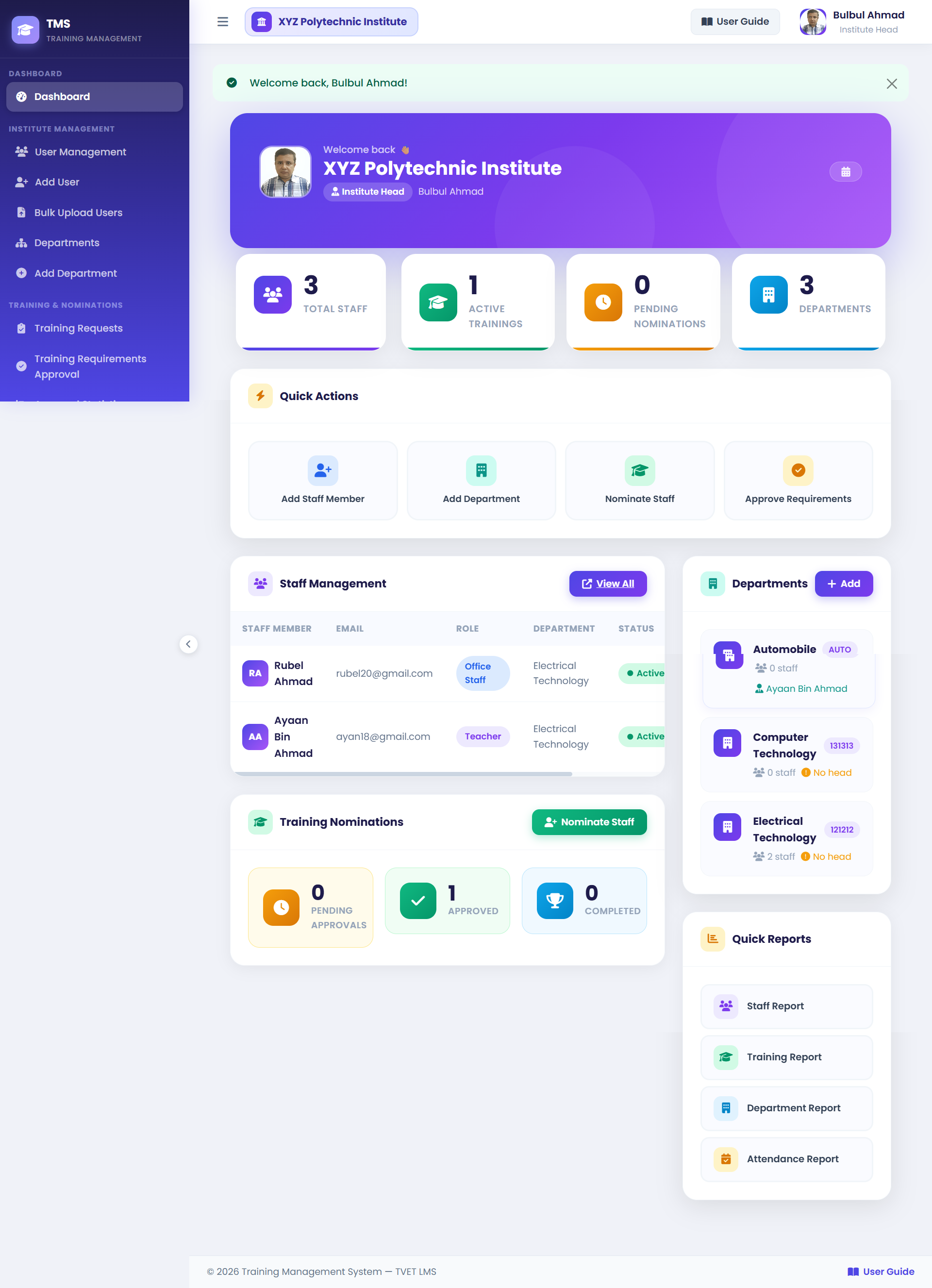
1Stats Cards — Four tiles: Total Staff Nominated, Pending Approvals, Approved, Completed Training.
2Pending Requirements — Staff training requirement submissions awaiting your action are listed here.
3Recent Nominations — The latest nominations you've submitted with their current statuses.
4Quick Actions — Shortcut buttons: Nominate New Staff, View Requirements, View Statistics.
Dashboard Cards Reference
| Card | What It Shows | Action |
|---|---|---|
| Total Nominated | All staff members you've nominated across all programs. | Click to view all nominations list |
| Pending Approval | Nominations submitted but not yet reviewed by Training Manager. | Wait or follow up |
| Approved | Nominations approved by Training Manager — training not started yet. | — |
| Completed | Staff who have fully attended and completed training. | Click to see details and certificates |
| Pending Requirements | Staff training requests awaiting your approval/rejection. | Click to review and action |
| Training Statistics | Completion rate %, certificates issued, and yearly breakdown. | URL: /dashboard/head/statistics/ |
Your Dashboard vs Training Manager's Dashboard
Your dashboard shows data scoped to your institute only. The Training Manager sees system-wide data across all institutes.