Nominate Staff
Submit individual or bulk nominations to enrol your staff members in upcoming training schedules.
Nomination Submission Flow
Nomination Form
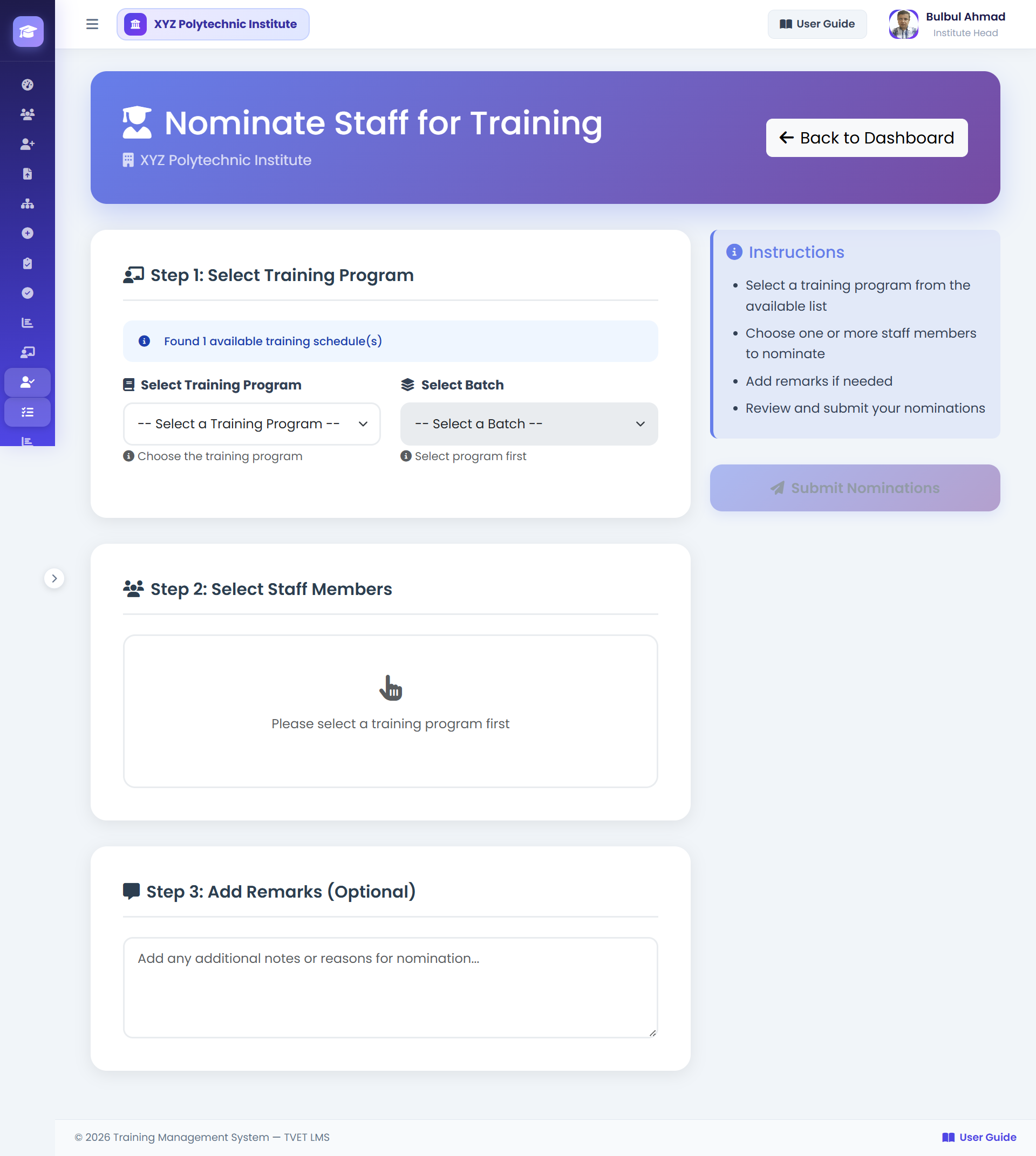
How to Nominate a Single Staff Member
- 1Open Nomination Form
Click Nominate Staff from your dashboard quick actions, or go to Nominations → New Nomination. URL:
/training/nominations/create/ - 2Select the Staff Member
Use the dropdown to select the staff member from your institute that you want to nominate.
- 3Select the Training Schedule
Choose the training schedule from the dropdown. Only PLANNED schedules are shown. Verify the dates are suitable for the staff member.
- 4Add a Note (Optional)
Optionally write a brief note for the Training Manager (e.g., why this training is relevant to the staff member).
- 5Submit
Click Submit Nomination. A confirmation message appears and the nomination status is set to PENDING. The Training Manager is notified.
How to Submit Bulk Nominations
- 1Open Bulk Nomination Form
Go to Nominations → Bulk Nominate. URL:
/training/nominations/bulk/ - 2Select Training Schedule
First select the target schedule. The form then shows your staff list with checkboxes.
- 3Check Staff Members
Select all staff you want to nominate for this schedule by checking their checkboxes.
⚡ Use "Select All" to nominate your entire staff for a single training schedule at once. - 4Submit All
Click Submit Nominations. Individual nomination records are created for each selected staff member, all with PENDING status.
Nomination Form Fields
| Field | Required | Notes |
|---|---|---|
| Staff Member | Yes | Must be a user under your institute. |
| Training Schedule | Yes | Only PLANNED schedules with open capacity are shown. |
| Nomination Note | No | Visible to Training Manager during approval review. |