Request Training
Submit a training requirement request when you identify a skill gap or want to attend a specific program — your request goes through a two-stage approval before enrolment.
Request Approval Flow
Request Training Form
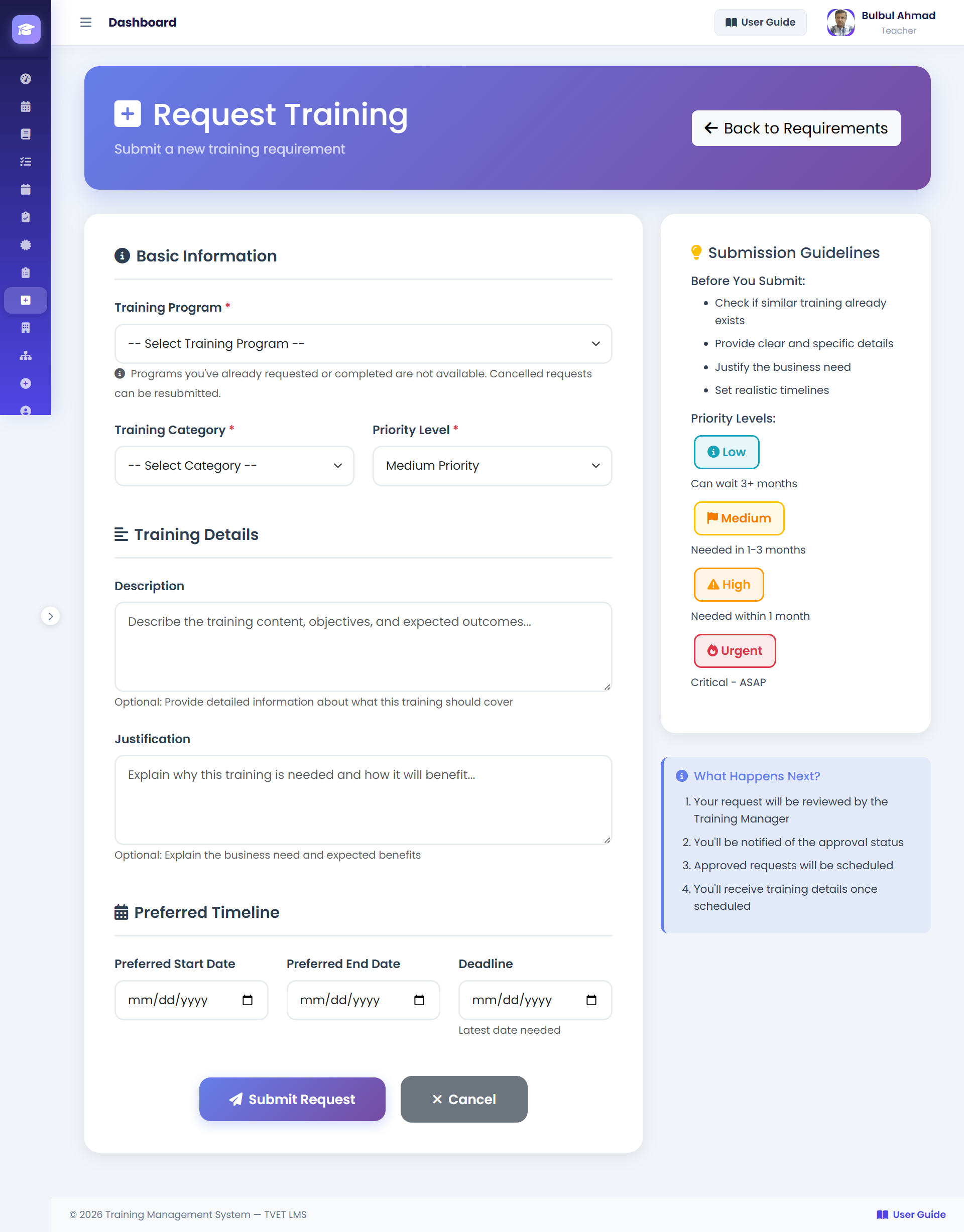
How to Submit a Training Request
- 1Go to Request Training
From the dashboard, click Request Training in the quick actions or navigate to
/users/training-requirements/create/. - 2Select a Training Program
Type or search for the program name in the dropdown. Only programs available in the system will appear.
💡 If the program you need isn't listed, ask your Training Manager to add it. - 3Write a Justification
Provide a clear reason why you need this training. Example: "This program on data analysis will support the school's new digital reporting requirements."
- 4Set Priority
Select Low, Medium, or High based on urgency. High priority requests are reviewed first by your Institute Head.
- 5Submit the Request
Click Submit Request. The form is saved and your Institute Head is notified. Your status will show as PENDING until they review it.
Request Form Fields
| Field | Required | Description |
|---|---|---|
| Training Program | Yes | The program you wish to attend. Select from dropdown. |
| Justification / Reason | Yes | Why you need this training — reviewed by Institute Head and Training Manager. |
| Priority | Yes | Low / Medium / High — indicates urgency of the request. |
Request Status Reference
| Status | Meaning |
|---|---|
| PENDING | Submitted, waiting for Institute Head to review. |
| IH_APPROVED | Institute Head approved — now with Training Manager for final decision. |
| IH_REJECTED | Institute Head rejected — you may resubmit with a stronger justification. |
| APPROVED | Training Manager approved — you will be enrolled in the next available schedule. |
| REJECTED | Training Manager rejected — you may contact them for more information. |