Page 3 of 4
Purpose Attendance marking is one of your most critical responsibilities. Each training day, you must record attendance for every enrolled participant. This data determines whether a trainee is eligible to receive a completion certificate — and it can only be corrected by the Training Manager.
Mark Attendance Every Day: Do not skip days. If attendance is not marked for a day, trainees may not receive their certificates. Always submit attendance before the end of each training day.

Attendance Marking Flow

flowchart TD A([Open Ongoing Schedule]) --> B[Click Mark Attendance] B --> C[Attendance Marking Page Loads] C --> D[Select Training Date] D --> E[Trainee List Appears] E --> F{For each trainee} F --> G[Mark: Present] F --> H[Mark: Absent] F --> I[Mark: Late] G --> J[Click Save Attendance] H --> J I --> J J --> K{All trainees marked?} K -->|Yes| L[Attendance Saved ✓] K -->|No| M[Warning — incomplete record] L --> N[Repeat for next training day]

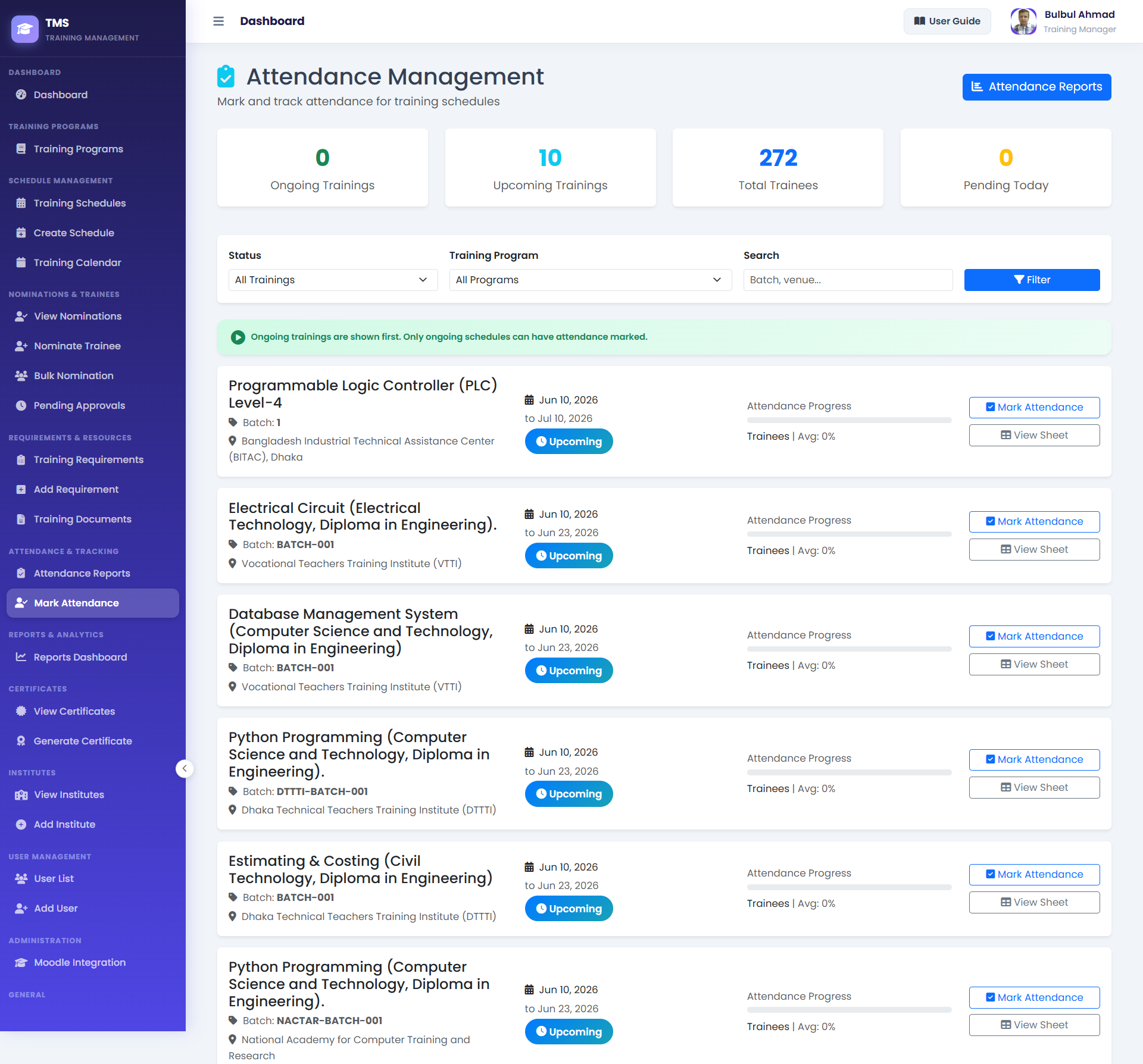
Attendance Marking Screen

Screenshot: Mark Attendance Form
URL: /training/attendance/mark/<schedule_id>/

1Date Selector — Choose the training date you are marking attendance for. Must be within the schedule's start/end range.
2Trainee List — Each approved participant appears as a row with their name and department/institute.
3Status Selector — For each trainee, select P (Present), A (Absent), or L (Late) using the radio buttons or dropdown.
4Save Attendance — Click Save to submit all marks for that date. You can also print a blank attendance sheet first.

Step-by-Step: Mark Daily Attendance

  • 1
    Open the Training Schedule

    From the dashboard or Assigned Schedules page, open the ONGOING schedule you are conducting today.

  • 2
    Click Mark Attendance

    Press the Mark Attendance button on the schedule detail page. This opens the attendance form at URL: /training/attendance/mark/<id>/

  • 3
    Select Today's Date

    Use the date picker to select the correct training day. The date must fall within the schedule's start and end dates.

    💡 You can also go back and mark previous days if you missed them — but do this as soon as possible.
  • 4
    Mark Each Trainee

    Go through the list and set each trainee's status to P (Present), A (Absent), or L (Late). Do not skip any trainee.

  • 5
    Save Attendance

    Click Save Attendance. A success message confirms the record is saved. Repeat this process every training day.

Print Attendance Sheet

  • 1
    Open the Schedule

    Navigate to the schedule you want a printed sheet for.

  • 2
    Click Attendance Sheet

    Click the Attendance Sheet button. This opens a printable view at: /training/attendance/sheet/<id>/

  • 3
    Print

    Press Ctrl+P (or Cmd+P on Mac) to print. Use this paper sheet for manual recording during the session, then enter it into TMS.

Previous: Schedules Next: Participants List