Dashboard Overview
Your central command center — see all key metrics at a glance and quickly access every function in the system.
Dashboard Navigation Flow
Dashboard Screen
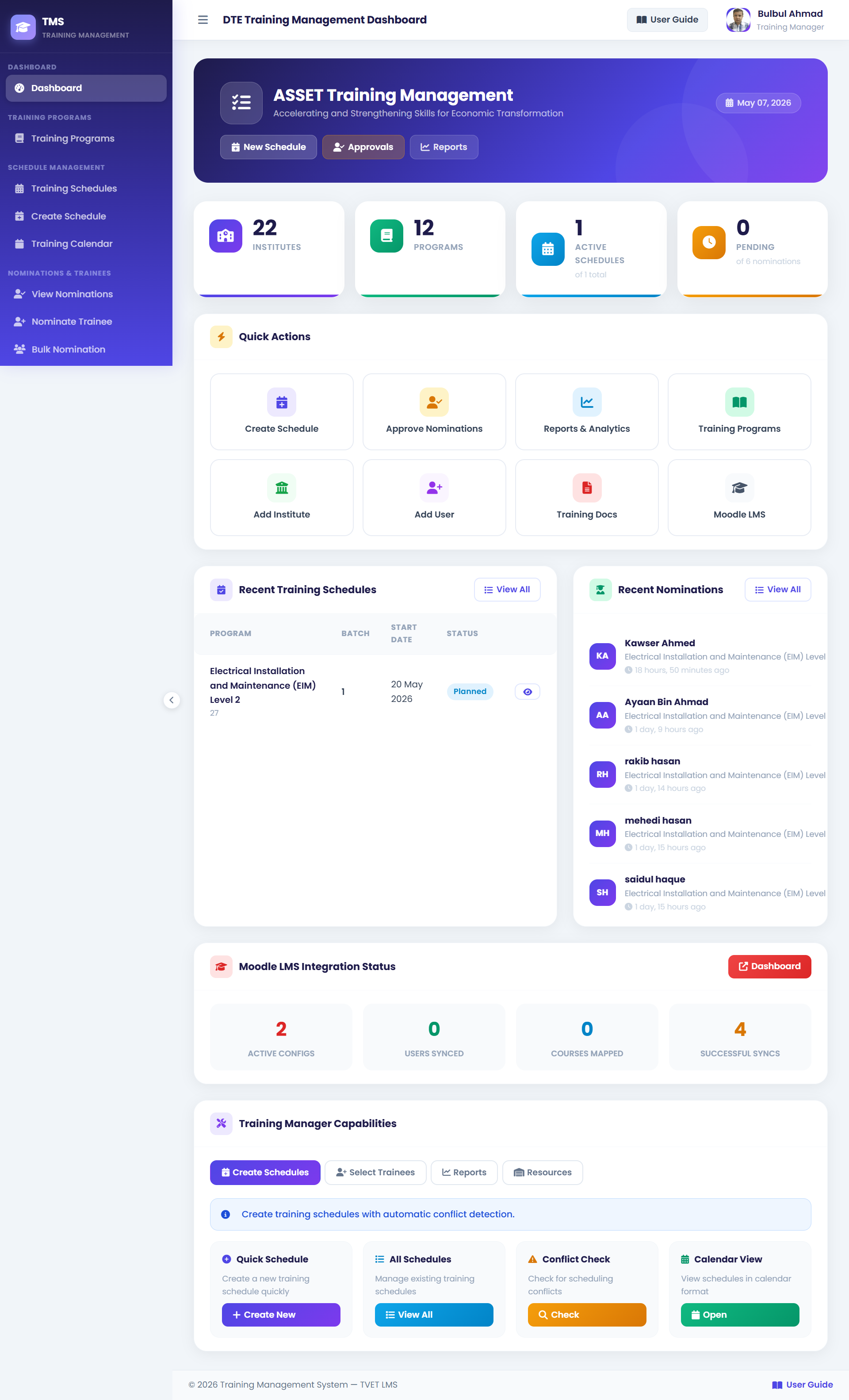
The dashboard displays 6 stat cards at the top, followed by a Recent Schedules table and a Pending Nominations table.
Step-by-Step: Using the Dashboard
-
1Log in to TMS
Open your browser and go to the TMS URL. Enter your email address and password, then click Login. You will be automatically redirected to the Training Manager Dashboard.
-
2Review the Summary Cards
The top row of 6 cards gives you an instant overview: total institutes registered, active training programs, all schedules count, currently active schedules, total nominations, and how many nominations are Pending your approval.
⚡ Tip: The Pending Approvals number is your most time-sensitive action item. -
3Check Recent Schedules
The Recent Schedules table shows the last 5 schedules created. Click any schedule name to view full details, participants list, and attendance.
-
4Review Pending Nominations
The Recent Nominations table shows the last 10 nominations. Nominations with Pending status need your review. Click the nomination or go to the Approvals section (see Page 5).
-
5Navigate Using the Sidebar
Use the left sidebar to access all features: Training Programs, Schedules, Nominations, Attendance, Certificates, Reports, and Institutes. The current page is highlighted.
🖨 Print Tip: Use Ctrl+P (or Cmd+P on Mac) to print this page as a reference.
Dashboard Cards Reference
| Card | What it shows | Action |
|---|---|---|
| Total Institutes | All institutes registered in the system | Click to go to Institutes page |
| Active Programs | Training programs with status = ACTIVE | Click to go to Programs list |
| Total Schedules | All training schedules ever created | Click to go to Schedules list |
| Active Schedules | Schedules with status PLANNED or ONGOING | Click to filter active schedules |
| Total Nominations | All nominations across all programs | Click to go to Nominations list |
| Pending Approvals | Nominations awaiting your approval | Click to go directly to Approval Dashboard |